HTML Lists, Control Flow with JS, and the CSS Box Model
Citations & Definitions
{cite} When you are referencing to indicate where the citation is from.
, {dfn} it is known as the defining instance of it.
{s} indicates something that is no longer accurate
HTML : used to describe the structure of
the page (e.g. headings, subheadings, paragraphs)

LIST :
-Ordered lists {ol} -Unordered lists {ul} -Definition lists
{dl} The definition list is created with it
{dt} This is used to contain the term being defined (the definition term)
{dd} This is used to contain the definition.
CSS
 in this you will learn :
● Control the dimensions of your boxes
in this you will learn :
● Control the dimensions of your boxes
● Create borders around boxes
● Set margins and padding for boxes
● Show and hide boxes
Box Dimensions
div.box { height: 300px;// height of box width: 300px; // width of box background-color: #bbbbaa;} p { height: 75%; width: 75%; background-color: #0088dd;
The most popular ways to specify the size of a box are to use pixels, percentages, or ems. Traditionally, pixels have been the most popular method because they allow designers to accurately control their size.
** limiting width **
td.description {
min-width: 450px;
max-width: 650px;
text-align: left;
padding: 5px;
margin: 0px;
Some page designs expand and shrink to fit the size of the user’s screen. In such designs, the min-width property specifies the smallest size a box can be displayed at when the browser window is narrow, and the max-width property indicates the maximum width a box can stretch to when the browser window is wide.
** limiting wiheight **
h2, p {
width: 400px;
font-size: 90%;
line-height: 1.2em;}
h2 {
color: #0088dd;
border-bottom: 1px solid
#0088dd;}
p {
min-height: 10px;
max-height: 30px;
In the same way that you might want to limit the width of a box on a page, you may also want to limit the height of it. This is achieved using the min-height and max-height properties.
** Overflowing content ** p.one {
overflow: hidden;}
p.two {
overflow: scroll;}
The overflow property tells the browser what to do if the content contained within a box is larger than the box itself. It can have one of two values: hidden This property simply hides any extra content that does not fit in the box. scroll This property adds a scrollbar to the box so that users can scroll to see the missing content.
Border, Margin & Padding
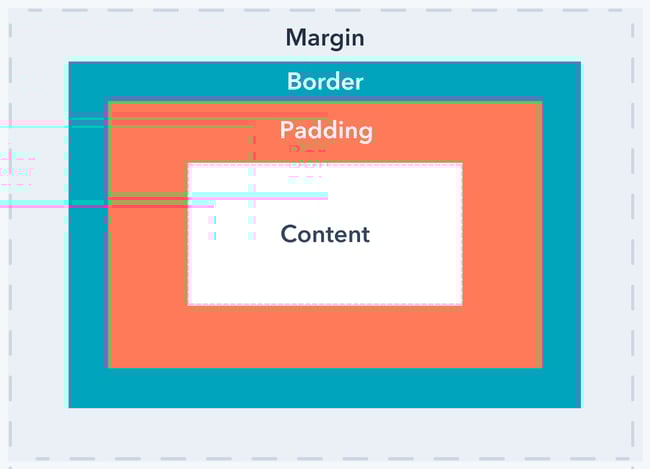
** border-width ** p.one {
border-width: 2px;}
p.two {
border-width: thick;}
p.three {
border-width: 1px 4px 12px 4px;// border-top-width , border-right-width, border-bottom-width, border-left-width,
iven in pixels or using one of the following values: thin, medium, thick.
** border-style **
p.one {border-style: solid;} p.two {border-style: dotted;} p.three {border-style: dashed;} p.four {border-style: double;} p.five {border-style: groove;} p.six {border-style: ridge;} p.seven {border-style: inset;} p.eight {border-style: outset;
You can control the style of a border using the border-style property. This property can take the following values: solid a single solid line dotted a series of square dots (if your border is 2px wide, then the dots are 2px squared with a 2px gap between each dot) dashed a series of short lines double two solid lines (the value of the border-width property creates the sum of the two lines) groove appears to be carved into the page ridge appears to stick out from the page inset appears embedded into the page outset looks like it is coming out of the screen hidden / none no border is shown You can individually change the styles of different borders using: border-top-style border-left-style border-right-style border-bottom-style
** border-color **
p.one { border-color: #0088dd;} p.two { border-color: #bbbbaa #111111 #ee3e80 #0088dd;}
You can specify the color of a border using
on different sides of a box using: border-top-color border-right-color border-bottom-color border-left-color
** shorthand border **
p { width: 250px; border: 3px dotted #0088dd;
The border property allows you to specify the width, style and color of a border in one property (and the values should be coded in that specific order
js
** USING QUOTES INSIDE A STRING**
if you just want to use double quotes in the string, you could surround the entire string in single quotes. If you just want to use single quotes in the string, you could surround the string in double quotes
** USING A VARIABLE TO STORE A BOOLEAN **
var i nStock;
var shipping;
inStock = true;
shipping= false;
** SHORTHAND FOR CREATING VARIABLES **
- var price = 5;
var quantity = 14;
var total = price * quantity;
- var price, quantity, total ;
price = 5;
quanti ty = 14 ;
total = price * quantity;
- var price var total 5, quantity = 14; price * quantity;
** COMPARI NG TWO EXPRESSIONS **
var comparison= (score!+ score2) > (highScorel + highScore2);
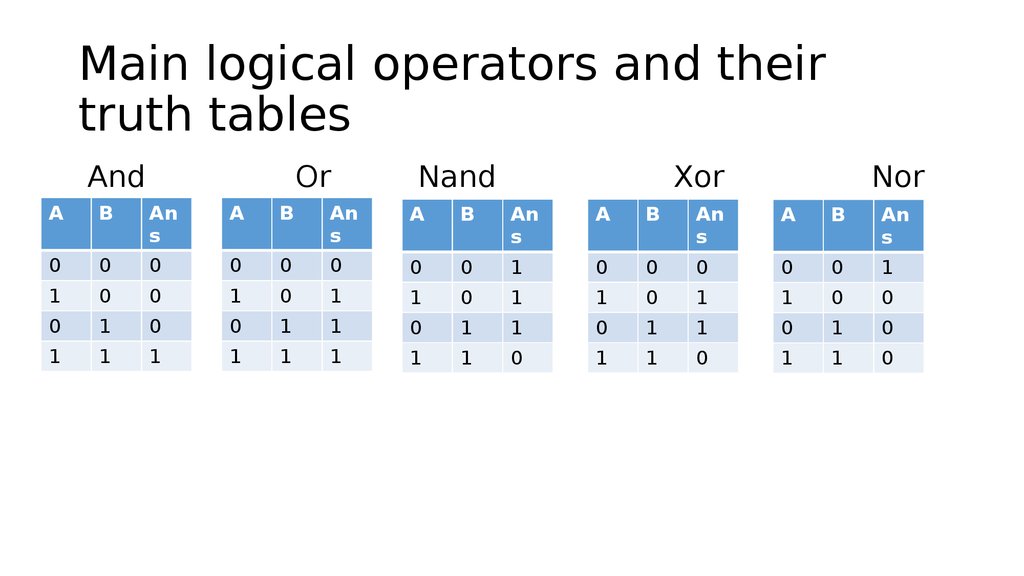
** LOGICAL OPERATORS **
** IF STATEMENTS **
Use the if statement to specify a block of JavaScript code to be executed if a condition is true.
if (condition) { // block of code to be executed if the condition is true }
** SWITCH STATEMENTS **
A switch statement starts with a variable called the switch value. Each case indicates a possible value for this variable and the code that should run if the variable matches that value.
switch (level) {
case ‘One ‘:
title= ‘Level 1 ‘ ;
break;
case ‘Two’:
tit 1 e = ‘ Level 2 ‘ ;
break;
case ‘ Three’ :
title = ‘Level 3’ ;
break ;
default :
title= ‘Test’;
break;